4018 Features and How-To
Enhancements / Bug Fixes
/ Usability /
Picking Ticket Changes
Custom Constraints enabled in Picking Tickets view
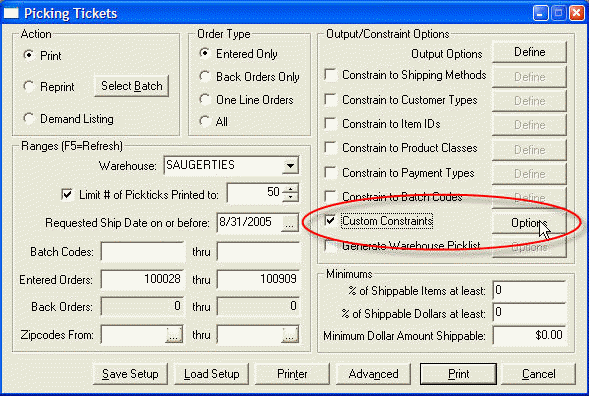
Custom Constraints options in
Picking Ticket driven by "User Expressions" on the order/customer/ShipTo
level detail.
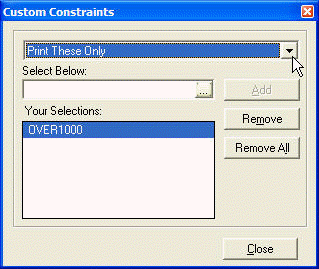
Custom Constraints dialog.
Choose between "Print These" or "Exclude These" selections
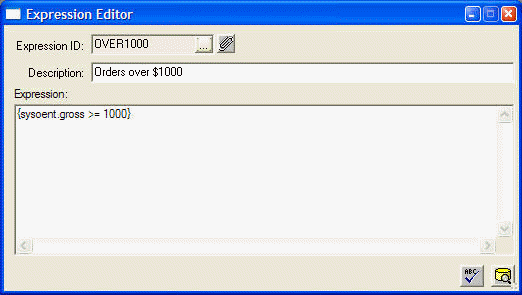
Expression can reference any
order-level detail, including demographics fields, e.g. SYSOENT.A2,
SYSCUST.I3, etc.
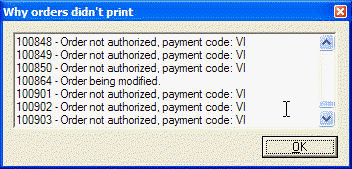
Orders not meeting custom
constraints will appear in the "why orders didn't print" list after
orders are printed.
Counter Sales now supports Kits (components will expand, and reduce
from inventory properly)
A new security group called "CCVIEW" can view the full (unencrypted) credit card,
the same as MANAGER and SUPERVISOR
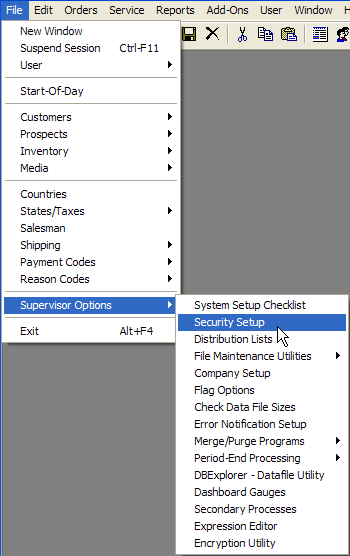
Use "Security Setup" to create
the CCView group. This group is not automatically created for
you.
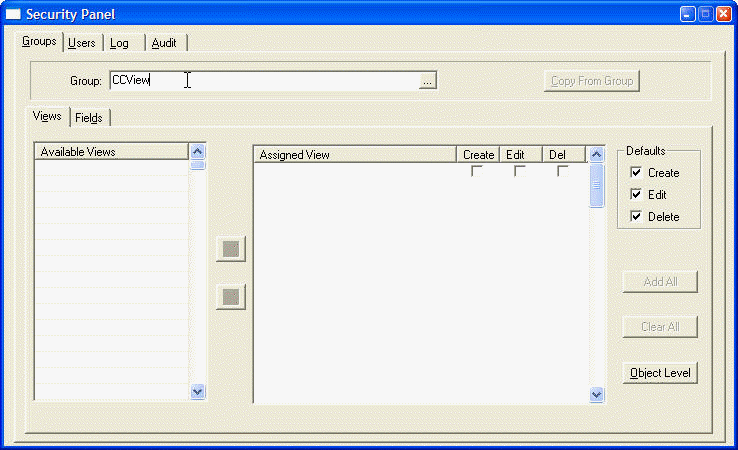
Simply enter the group name
CCView (case insensitive), then F2 to save. Note: Do not assign views to this
new security group.
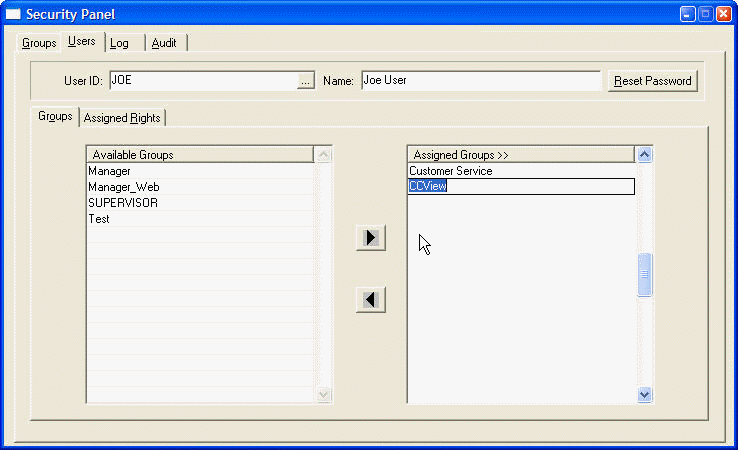
Assign the CCView group to users at your discretion. They will
be able to now view the unencrypted CC#.
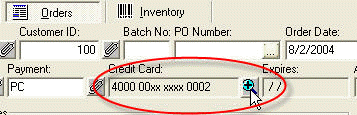
In Customer Service Lookup /
Orders, press "Zoom" to bring up the manager
Username/Password dialog below:
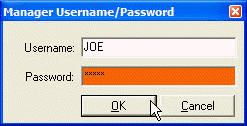
If the entered username/password is a member of the Supervisor, Manager, or CCView group,
they can now view the
actual credit card number (NOTE: This can be done even if the
"currently logged in user" does not belong to one of these security
groups).
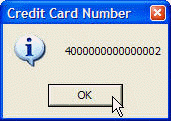
Once the credentials are
verified the full, unencrypted credit card number will display.
Reverse Phone Lookup web service added to New Customer dialog in
Counter Sales
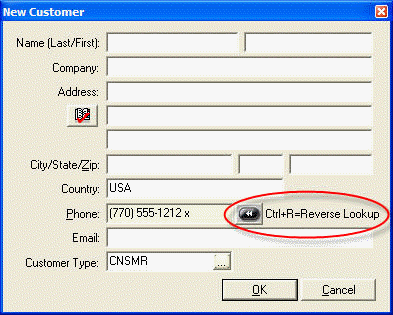
Quick new customer entry
in Counter Sales: Alt+P to go to phone field, enter phone number,
Ctrl+R to populate the name and address!
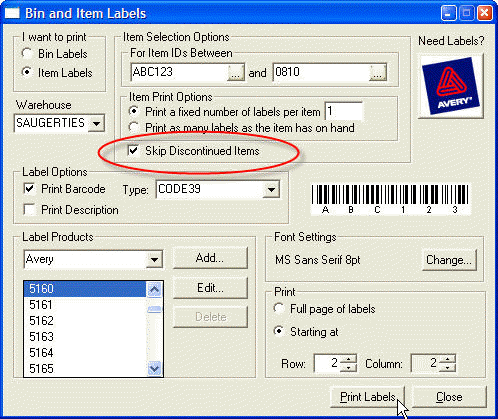
Added option in Bin/Item Labels to
skip discontinued items
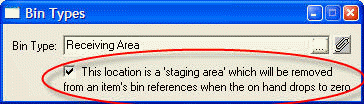
Added "staging area" flag on bin types:
[ ] This location is a 'staging area' which will be removed from an item's bin references when the on hand drops to zero.
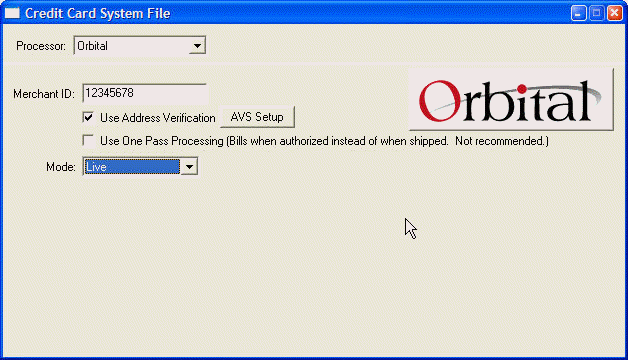
Our Orbital Gateway interface was
officially certified by Paymentech
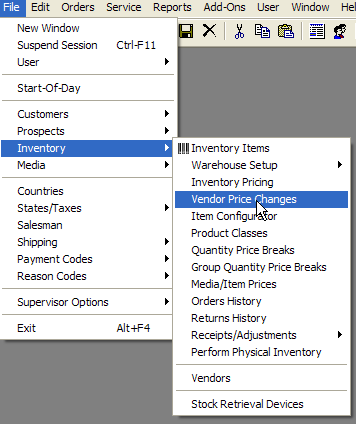
Vendor Price Changes - grid of
Vendor Item ID, Item ID, Description, price codes, and std cost for easy
worksheet entry
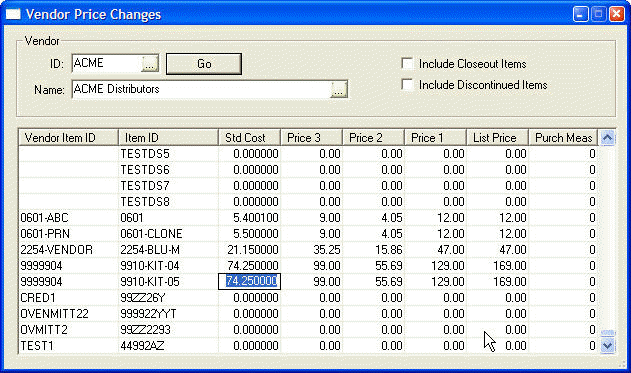
Entries are automatically
saved as the row is tabbed through.
Pick from Single Bin option for Inventory items:
Will pick the suggested quantity for an item from a single bin.
If there isn't enough stock, check the
next highest ranked bin, and so on, until the item can be picked from
that single location.
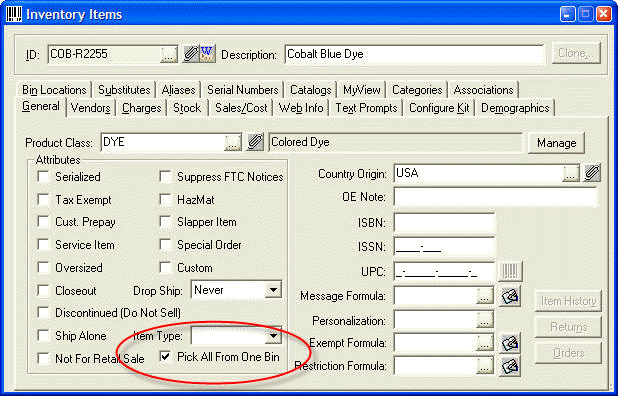
Useful when
picking from different "lots" is not desirable, e.g. color die,
bolts of fabric, lengths of rope, etc.
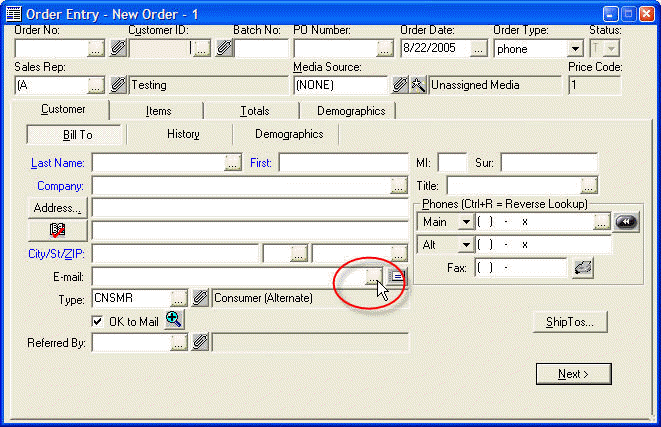
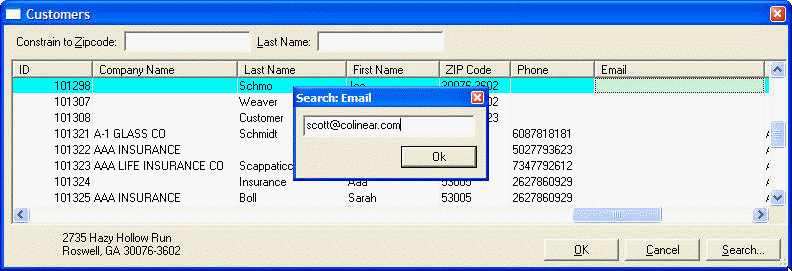
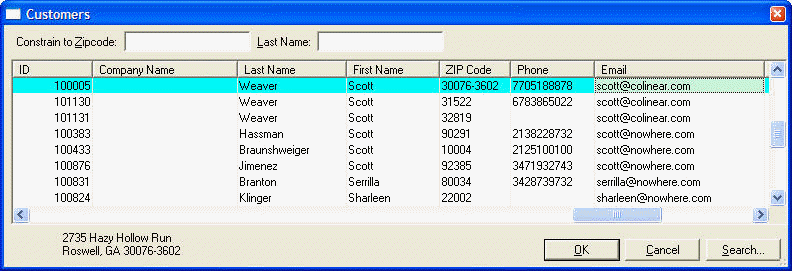
Email address is indexed and searchable in the Customer/Prospect
file, and is available in the popup lookup lists for each
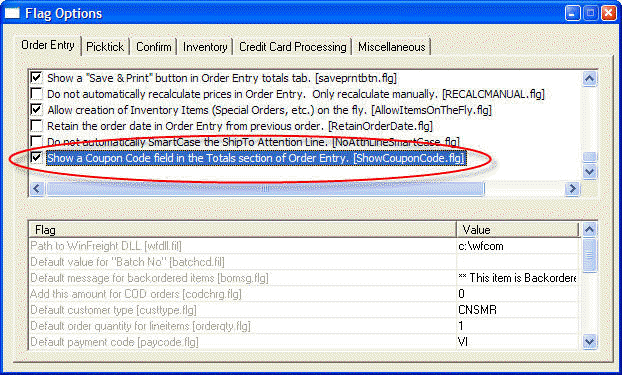
Coupon Code added to Order Entry and
Import Orders (see Totals Tab).
(NOTE: must be enabled by flag option)
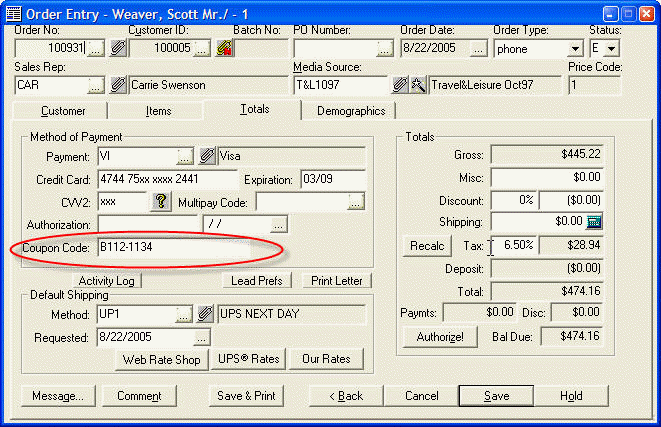
This coupon code has no
logic or lookup behind it. It is currently a free-form entry
to be enhanced at a later time.
You may use
it for reporting, tracking, etc.
Variable Kits with discounts or
upsells work properly now
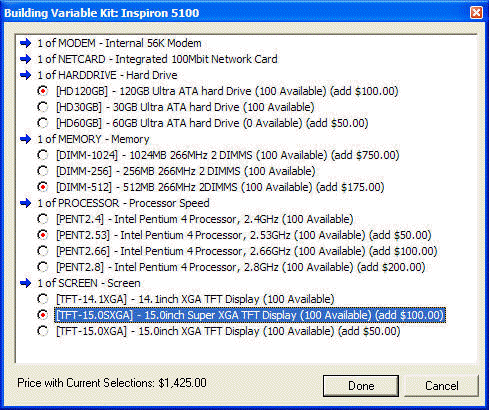
Create an unlimited
variation of items with discounts/upsells based on components
chosen.
Variable kits can be a combination of static components and optional
ones,
as shown above.
Optional Drop-Ship logic enabled
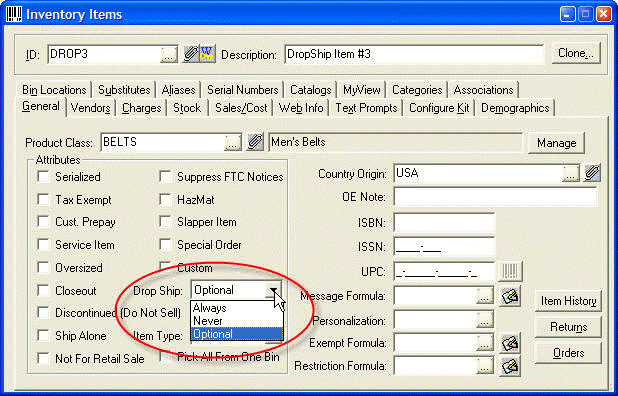
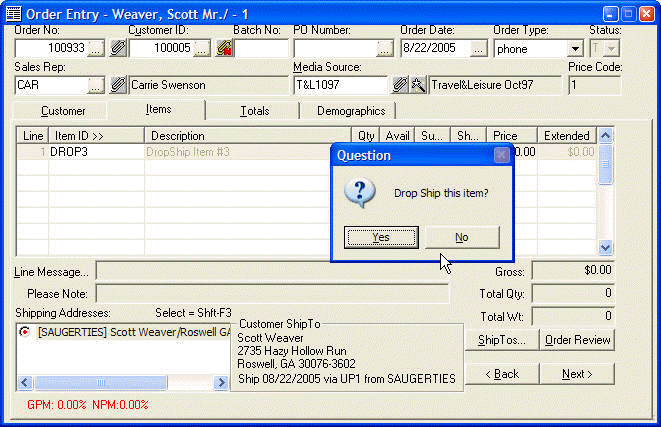
When marked "Optional",
the CSR decides whether to drop-ship the item based on the available
in-stock inventory
or other criteria. "During order import, items marked
"optional" will be allocated from stock (i.e. not marked as
dropship).
"Our Rates" in Order Entry displays
the calculated shipping charge for all shipping methods
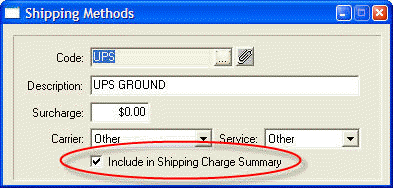
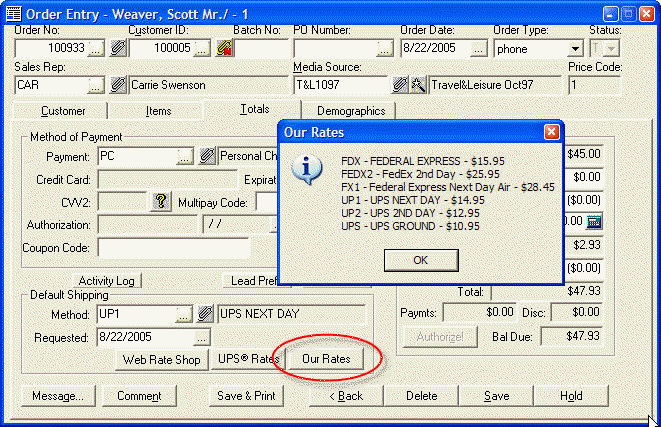
The rate for each shipping
method is calculated from whatever formula(s) you have defined in Response.
Secondary Process Hook added to "Print Purchase Orders"
Defined by PO.EXP
Create an SPE based on POHEAD, POLINE, etc, and specify the
SPE ID in a flag option called PO.EXP.
User Menu added to show items added
to User/Group Task Launcher
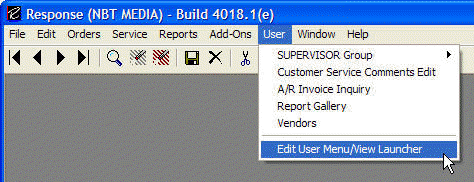
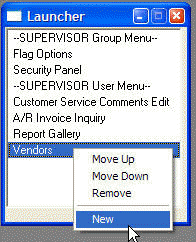
Right click in the Launcher view
to manipulate/add items.
Click "New" to bring up a list of Response Views.
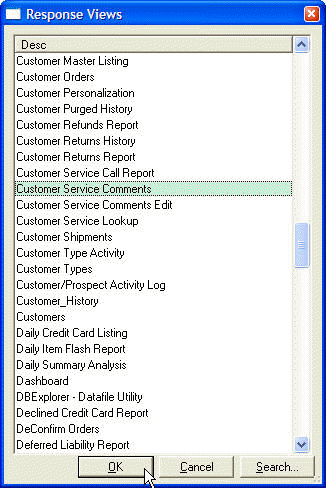
Note: Even when added to a user's
menu, the security system still governs whether the user has access
(or not) to that view.
Views added to the task launcher appear in the "User" menu at
the top of Response.
These menu configuration files are stored in the \r4w\data directory
in the format USERNAME_menu.fil and GROUP_group_menu.fil.
To create a group menu, first create a user menu then manually copy
the USERNAME_menu.fil to a GROUP_group_menu.fil, e.g.
CSR_group_menu.fil.
Group menus will appear as sub-menus [see User menu screenshot above].
WHS Assignment and Allocated Qty added to Shipto/Order Lineitems View
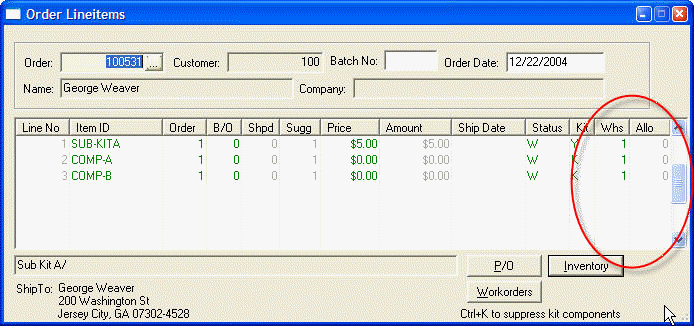
Note: the "Allo" field is
in addition to the Suggested Ship Qty field, meaning the lineitem is
allocated to, but not suggested
to ship because the
lineitem is either (a) a kit component where the entire kit cannot
be shipped or (b) the lineitem is in
printed status and can't be
"suggested" until unpicked or confirmed. The use of
the "Allocated" field in addition to
Suggested Ship Qty ensures that Response will allocate inventory in
a truly FIFO manner.
Can link to external websites/files
in Inventory Text Prompts
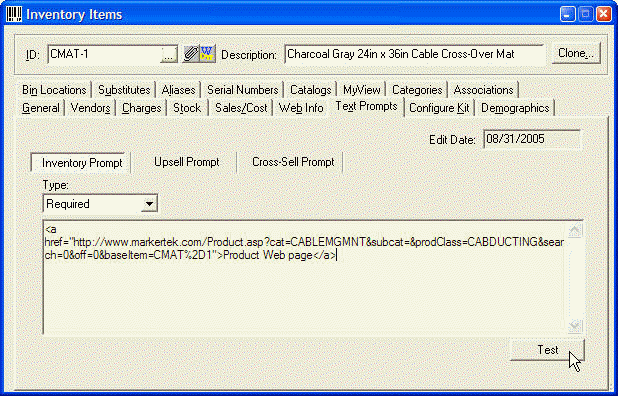
Inventory Text Prompts can use
additional HTML tags, such as
<a href=
<b>
<i>
<font color=Aqua|Black|Blue|DkGray|Fuchsia|Gray|Green|Lime|LtGray|Maroon|Navy|Olive|Purple|Red|Silver|Teal|White|Yellow
<UL>
<LI>
<BR>
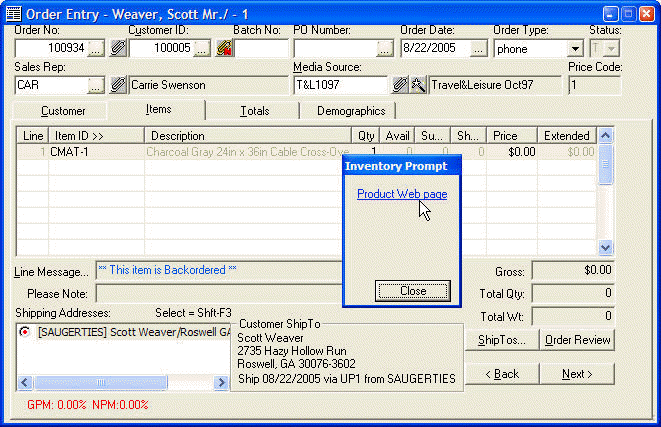
Sample from the above text
prompt.
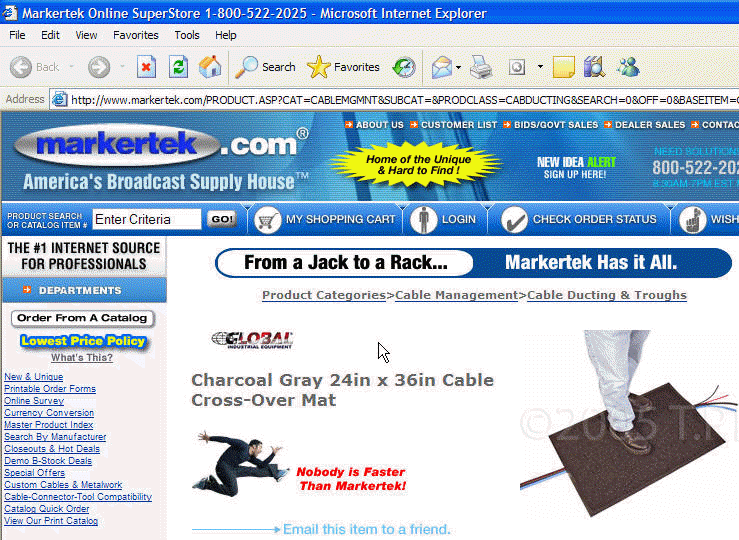
Clicking the blue
underlined "Product Web Page" brings up the associated URL.
In the "Apply Payments" screen of Account Receivable, the Finance Charge amount showed an incorrect date.
Specifically, the first date of a finance charge
for anyone in the system.
Clone "Stock Levels & Bin Locations" changed to "Bin Locations", since on hand figures cannot reasonably be cloned.
Customer Purged Item History would not always start at the top of the list.
Added check at start of day to set all Advertising Media record "contents code" to (NONE) if not set that way.
Inventory Pricing Import using Price Utility would not work when importing from file of ITEM_ID, Price1, Price2, etc.
Added failsafe routine after printing picking tickets to ensure orders go into the proper W or Q status.
If the first item (by alpha) in the inventory database is a kit master, the Receipts/Adjustments screen would always show the message: "You cannot process a Kit master record".
Duplicate checking for settlements was not enabled for Transfirst.
Imported Orders could get put on hold with "Invalid Zipcode for customer" when the zipcode was fine.
The "Finalize" section of SPE scripts might not run resulting in files left open, receipts not printing correctly, etc.
On Order Quantities for Inventory were not being updated properly when cancelling a "T" status Purchase Order.
Bookmark set/resume functionality for referrals in Merge/Purge duplicates was not working.
Referrals were not updated properly for customers when imported. (4 scenarios tested).
Clicking "View Order" or "Select" from Customer Orders would occasionally bring up the incorrect order.
"Invalid Symbol In Expression 'Y'" could occur when entering Telemarketing Setup.
Enter Credits/Debits screen could load with a transaction ID already on the screen.
Deleting "T" status orders at start of day would not update WHSINV properly.
Could get the Order Entry warning that you haven't run Start of Day even when you have.
Clicking "discontinued" on an inventory item could cause the 'closeout' flag to remain 'Y', even though it shows unchecked on the screen.
Confirm by Manifest would not confirm backorder shipments correctly.
Confirm by manifest would show progress bar above 100%.
Returns wasn't calculating discount amount per item properly when discount AMOUNT used without percentage.
Customer /Prospect Activity now displays more information (reference order numbers, transaction IDs, etc.)

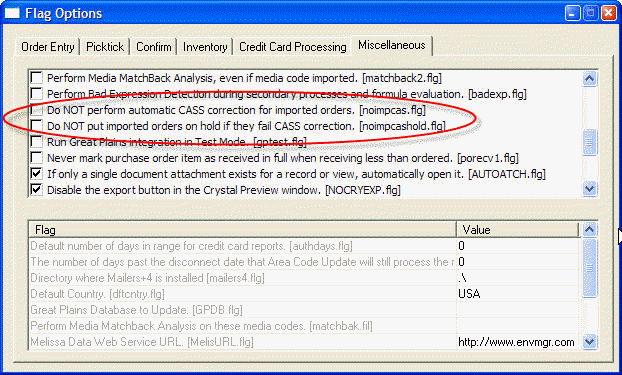
Added flag to optionally defeat placing
imported orders on hold if they fail CASS Address check (the default
behavior)
Will stop attempting to CASS imported orders if CASS Server fails to return a valid response more than 2 times.
Will update ShipTo address with changes to customer address if the Address Line1, city, or zipcode are blank.
Before, if entering lineitems first, THEN entering customer
information, you'd have to manually update the ShipTo information as
well.
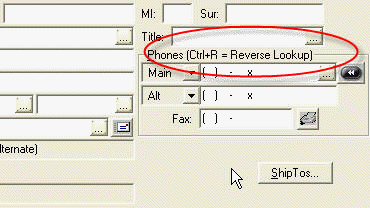
Added Ctrl+R hint for reverse phone lookup.
Added matchcode check when exiting phone number field (after reverse phone lookup to find duplicate customers).
Removed autoCASS after reverse phone lookup since the web service already returns a standardized zip+4 address when available.
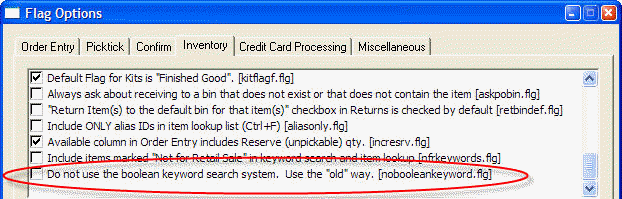
Added flag option to use the "old" method of keyword searching, if desired.
Shift+Tab in counter sales ITEM field will take you to Qty field, as expected.
Payments and change due in counter sales can now be accurately displayed in receipts.
use the constants: nCS_PAYMENTS for accumulated payments and
nCHANGEDUE for change due in SPE script.
Adding new views to security setup simplified (new secupdatev9.fil won't remove security settings on existing views).
Sample mail merge documents included with build update for Microsoft Office Word (Print letter option).
Download
MailMerge.zip (207kb)
Create a directory under \r4w called MailMerge (e.g. \colinear\r4w\MailMerge).
Extract MailMerge.zip to the new \r4w\MailMerge directory.
change the flag option to point to this new directory:
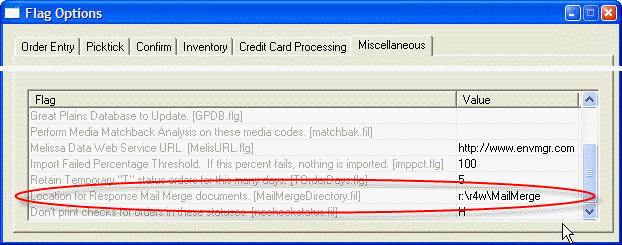
The "Print Letter" button will bring up a file selection dialog in
this directory where you can select a document to print.
Use the following examples:
CS_apology_with_coupon_sample1.doc (use when printing letters from
customer service)
DCC_DeclinedCreditCard1.doc (use when printing letters for declined
credit cards)
MLL_HPpostcard1.doc (use for printing letters in mailing
lists/labels)
MLL_SpecificItemLetter.doc (ditto)
OE_ThankYouLetter.doc (use for printing letters in Order Entry)
ResponseData.doc (this is the mail merge master file used for
creating documents)
modify as needed!
Encryption check added to system login - makes sure the workstation is capable of performing128-Bit Triple-DES encryption.
We had problems with Windows 2000 pre-sp2 returning blank
encryption codes with no errors. This check ensures the
workstation
is capable of encryption before causing a mess in Response.
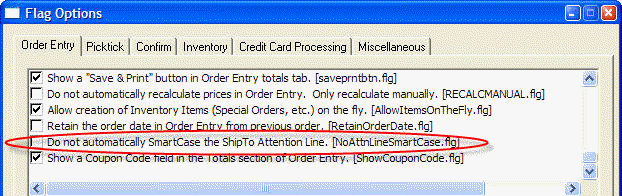
Added flag option to NOT namecase the Shipto Attn: line.
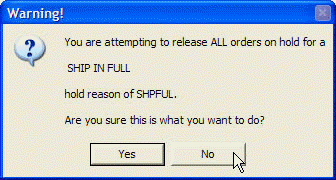
Warning added when attempting to remove ALL orders on hold for a "ship in full" reason.
Batch credit card processing uses different filenames for Authorizations and Deposits (used to be the same).
Added a parallel processing script function {get_run_background("application.exe")} to auto-load Windows programs during SPE scripts and continue running the script (instead of waiting until the app is complete).
|
Picktick.Rpt Changes in 4018 |
Added "Max Detail Lines" to picktick.rpt and changed standard picktick.rpt to work with Crystal 10 Runtime (prior versions print lineitems all the way down the page).
picktick_fixed.rpt was included with Data4018.zip and extracted to your
\r4w\data directory.
If you use an "old" picktick.rpt with the Crystal 10 runtime, it may
print lineitems all the way down the page instead of leaving room for
the bottom labels.
to get around this, several changes were made to the standard
picktick.rpt. You may choose to add these changes to your existing
customized picking ticket, or start
with the standard picktick_fixed.rpt and make your customizations from
there.
A new setting tells picking tickets how many detail lines to print on
the page (lineitem messages count in # detail lines).
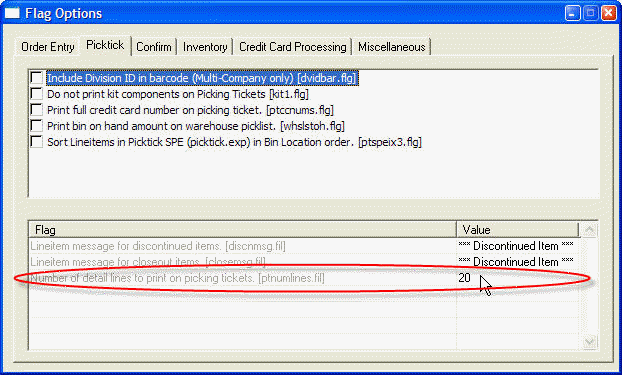
New formulas were added to Picktick.
Formula: MaxLines
Value:
13
Set from inside Response IF the Number of Detail Lines specified in Flag
Options in Response is NOT 13.
(Note: so if you change the number of detail lines in Response, you MUST
have a MaxLines formula in your picktick.rpt or you'll get an error.)
Formula: LineCountReset
Value:
WhilePrintingRecords;
NumberVar LineCount := 0
Formula: LineCountIncrement
Value:
WhilePrintingRecords;
if {@SuppressKitComponents} = True and {lineitem.kit_flag} = 'K' then
//do nothing
NumberVar LineCount := LineCount
else
if (({@BackOrderMessage} = Trim({LINEITEM.MESSAGE})) and ({@BackOrderQuantity}
= 0)) or trim({lineitem.message})= "" then
//add 1
NumberVar LineCount := LineCount + 1
else
//add 2
NumberVar LineCount := LineCount + 2
The last thing needed:
Right-click on the Details a section and choose "Format Section".
Click the formula button next to "New Page Before"
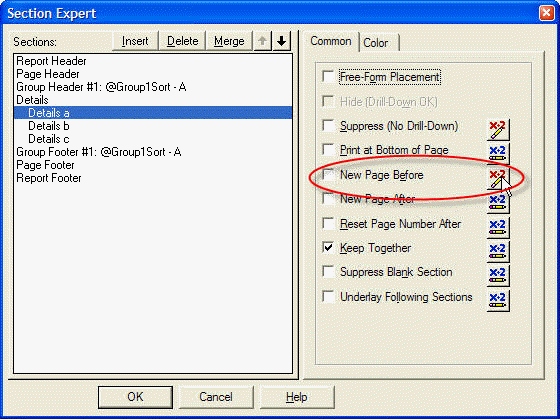
and enter the following information:
WhilePrintingRecords;
NumberVar LineCount > {@MaxLines}
You may need to experiment with the
flag option setting in Response to get the correct # of lines to print
on your picking ticket, and
thus line up the Group totals, grand totals, and labels at the bottom of
the picking ticket.
If you prefer to continue using your
customized picktick and NOT make these changes, just leave that number
of details lines flag
option set to 13, and no attempt will be made to set formulas using this
new method.
If you have any questions or problems,
please contact support and we'll help you "fix" your custom picking
ticket report (for a small fee
 )
)